Automatically update available Intune apps – with a separate update package
Automatically update available Intune apps without installing them on all devices. Using KeePass as an example, I’ll show you how to set up a separate update package with a requirement rule for existing installations.

Makecloud
· 8 min read
Automatically update available Intune apps – with a separate update package
An application should be available in the Company Portal without being installed on all devices. Once a user has installed it, however, it should stay up to date.
A separate update package can be used for exactly this purpose: The application remains available as Available. A second package is assigned as Required and uses a requirement to check whether the application is already present.
In this guide, I will show you the setup using KeePass as an example.
What options are available?
There are various ways to provide updates for available Win32 apps.
Users can install a new version themselves through the Company Portal. However, this requires them to take action.
Intune also offers the replacement feature, known as Supersedence. Combined with Auto-update, it allows available apps to be updated automatically. This feature is intended for applications whose installation users have requested through the Company Portal.
Another option is a separate update package with an additional requirement. This is the approach I use here. It can also cover manually installed applications, provided they match the check and the installation method.
The setup: One app for installation, one for updates
Two Win32 app entries are created for KeePass:
| App | Purpose | Assignment |
|---|---|---|
| AV- KeePass 2.61.1 | Installation through the Company Portal | Available for the intended users |
| BA - KeePass 2.61.1 – UPDATE | Updating existing installations | Required for the intended devices |
Both contain the same new application version. The update package also receives a requirement that checks for an existing KeePass installation.
The two checks serve different purposes:
- Requirement: Is KeePass already present, making the update applicable?
- Detection: Is the desired KeePass version already installed?
This distinction is essential. The requirement checks the existing installation. Detection checks the target state after the update.

Prerequisites
Before modifying the apps, you need:
- A tested
.intunewinpackage of the new KeePass version. - An installation command that can update the existing version.
- A detection rule for the new version.
- The actual installation path on your devices.
- A small test group with different installation states.
This guide assumes a device-wide installation. For portable or user-specific installations, you must adjust the check and installation logic accordingly.
1. Update the existing Available app
Open the existing KeePass app in Intune and update:
- The
.intunewinpackage. - The version information.
- The description, if necessary.
- The detection rule.
- The installation and uninstallation commands, if they have changed.
The existing Available assignment remains in place.
Important: Simply changing the version information in the app entry is not enough. The package and detection must also match the new version.
Users installing KeePass for the first time will therefore receive the current version.
2. Create a separate update package
Create a second Windows app of the type Windows app (Win32) and upload the package of the new KeePass version.
Use a clearly identifiable name, for example:
KeePass – UPDATE
Copy the program settings from the Available app. The installation context, commands, and return codes must match the same package.
Leave the assignment empty for now. First, we will configure the requirement and detection.
3. Check for an existing installation as a requirement
Add an additional rule under Requirements.
For an installation in a fixed directory, you can use a file-based check:
| Setting | Example |
|---|---|
| Requirement type | File |
| Path | C:\Program Files\KeePass Password Safe 2 |
| File or folder | KeePass.exe |
| Property | Property |
| Operator | Less than |
| Value | 2.61.1 |
The path is an example. Check beforehand where KeePass is actually installed on your devices. An installation under Program Files (x86) requires an appropriately adjusted rule.
The requirement should check whether the application is present at all. It should not exclusively detect one specific old version.
If installation paths vary, a PowerShell-based requirement may be more suitable. Multiple additional rules do not automatically become a search across different alternative paths.
4. Detect the target version
Configure a detection rule for the update package that detects the desired version.
Simply checking for KeePass.exe is not sufficient here: The file is already present in the old version. Intune could therefore detect the update package as installed before the update has taken place.
A version check is suitable for this setup. If your installation method supports it, the target version or a newer version should count as installed. This prevents an already newer installation from unnecessarily triggering another installation attempt.
Use consistent detection for the same target state in both app entries.
5. Assign the update package as Required
Initially assign KeePass – UPDATE to a test group as Required.
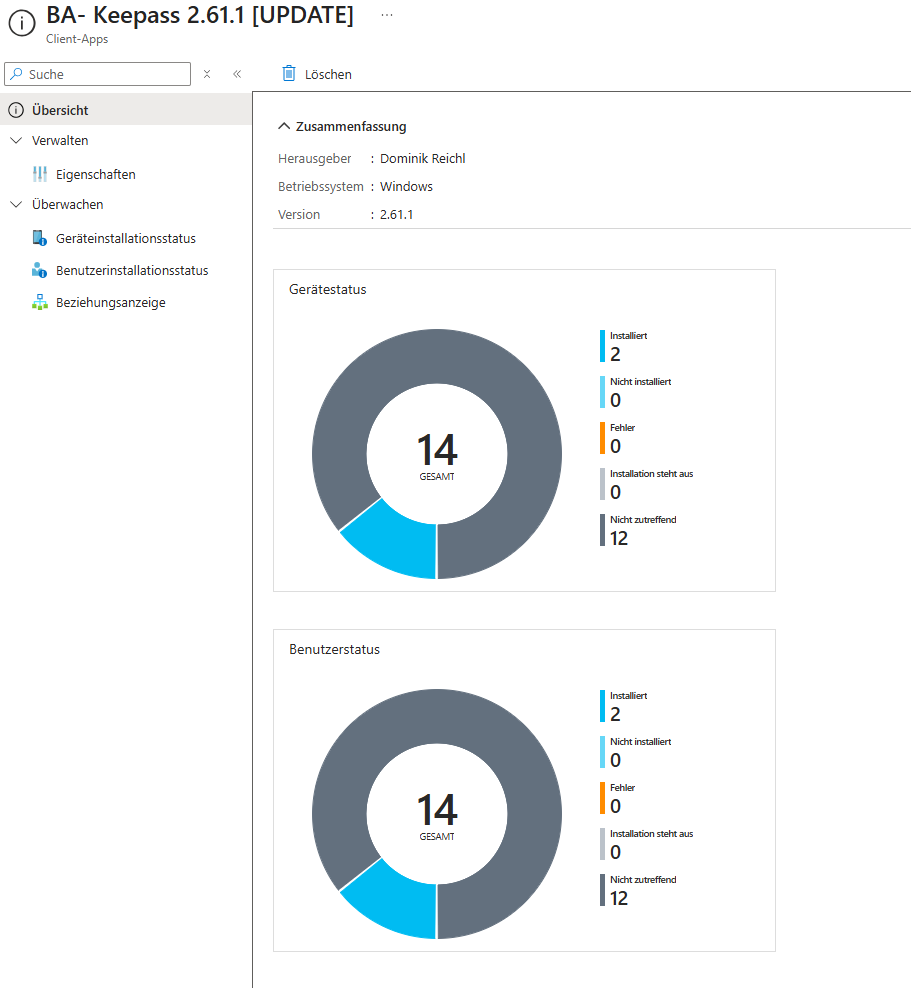
Although the assignment is mandatory, installation should only take place on devices that meet the requirements. On devices without a matching KeePass installation, the package becomes not applicable.
After successful testing, you can expand the assignment. All devices is possible, but it should be a deliberate decision. What matters is that the requirement captures exactly the installations you want to update.
6. Test the different states
Test at least these scenarios:
| State before evaluation | Expected behavior |
|---|---|
| KeePass is not installed | The update package is not applicable. |
| An older matching version is installed | The update package installs the new version. |
| The target version is already installed | Detection recognizes the app; no reinstallation is necessary. |
| A newer version is installed | With an appropriate minimum version check, no update is necessary. |
| KeePass was installed manually | The update applies if the requirement and installer support this installation. |
| KeePass is open during the update | The package must handle the running process in a controlled manner. |
Also check whether settings and existing data remain available unchanged after the update. For KeePass, this specifically includes access to the databases being used.
What does the user see in the Company Portal?
After modifying the Available app, the old installation may initially no longer satisfy the new detection rule. As a result, the Company Portal may temporarily show an installation option again.
The separate Required package handles the update after the next applicable Intune evaluation. The user normally does not need to start an installation in the Company Portal.
The display in the Company Portal and the status in Intune do not necessarily update at the same time. A restart is not a general prerequisite for correcting the status.
If the display is delayed, first check:
- Which version is actually installed.
- Whether detection recognizes this version.
- Whether the installation requires a restart.
- Whether Intune has already reported an up-to-date status.
What do the results look like in Intune?
Two states are particularly relevant for the update package:
Not applicable: The requirement is not met, for example because KeePass is not present.
Installed: Detection recognizes the desired version. This may be the case after a successful update or because the matching version was already installed beforehand.
The Installed status alone therefore does not prove that this package performed the update. To verify the process, you should also consider the installation logs and the locally installed version.
For the next update
For the next version, update both app entries again:
- Test the new package first.
- Update the Available app to the new version.
- Update the separate update package as well.
- Adjust both detection rules.
- Check the requirement for an existing installation.
- Evaluate the update in the test group first.
This keeps installation and updates separately controllable, while the Company Portal continues to offer a current version.
Conclusion
With an Available app and a separate Required update package, you can selectively update existing installations without introducing the application on every assigned device.
The most important point is the clear distinction: The requirement checks whether the application is present. Detection checks whether the desired version is installed.
Before rolling out the assignment broadly, test both rules and the actual upgrade behavior on representative devices.
Further documentation
Makecloud
Microsoft Cloud Engineering
I enjoy working with Microsoft Cloud, modern device management, and automation. On makecloud.ch, I share my experiences, tutorials, and solutions related to Intune, Entra ID, PowerShell, and PSADT. My goal is to write clear, easy-to-understand posts that help with day-to-day IT tasks—and to document and share my knowledge with others.